This guide explains how to capture lossless video using OBS.
Create a profile
Prior to changing settings, consider if a separate profile should be used. Duplicating the current OBS profile can be done with Profile > Duplicate....
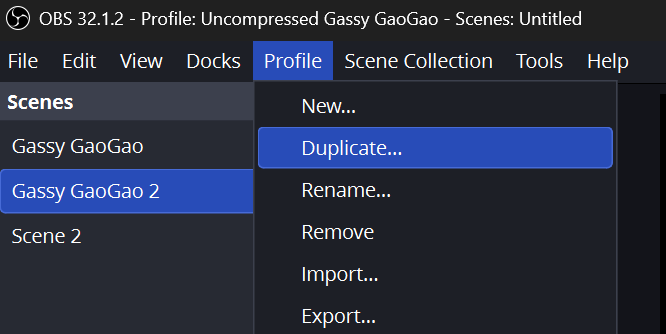
This is advised as it involves configuring various settings, which may not be compatible with lossy codecs. OBS will also warn you when changing the color format that this will incur increased CPU usage when streaming.
Configure the color format
By default, OBS uses “NV12 (8-bit, 4:2:0, 2 planes)“. This format is suitable for streaming and lossy recording. However, when used for lossless recording, this can create fuzzy frames.
- Navigate to the advanced tab.
- Set “Color Format” to “I444 (8-bit, 4:4:4, 3 planes)”.
With simple output mode
- Navigate to the output tab.
- Set “Output Mode” to “Simple”.
- Use “Lossless Quality” preset on the recording section.
Videos will be recorded in .avi format if this is done. Depending on the given video resolution and your drive speed, this may result in dropped frames. It may be necessary to record using H.264 as detailed in the next section.
With advanced output mode using lossless H.264
- Ensure that in the output tab in settings with “Output Mode” is set to “Advanced”.
- Switch over to the “Recording” tab.
- Set options in the “Recording Settings” section:
- Recording Format: Hybrid MP4 (.mp4)
- Video Encoder: x264
- Optionally set “Audio Encoder” to any lossless format.
- Set options in the “Encoder Settings” section:
- Rate Control: CRF
- CRF: 0
- x264 options (separated by space):
qp=0 - Set “CPU Usage Preset” to highest of what your device can handle. Or set to fastest if you plan to re-encode the video.
Where “CPU Usage Preset” should be set depends on other factors, including the resolution of the video and the nature of the captured footage. If OBS shows a “Encoding overloaded!” status message, it’s a good indicator that a faster preset should be chosen.
Further video optimization
Whichever way the video is encoded, it may not exactly be tightly compacted. For this, it may be recommended to re-encode the recorded lossless video.
ffmpeg -i "./input-video.mp4" -codec:v libx264 -codec:a copy -preset placebo -qp 0 "./output-video.mp4"- Flags explained:
-codec:v libx264: Encodes all video streams using the x264 encoder.-preset placebo: Tells x264 to use its encoding slowest preset. This compacts the output file further.-codec:a copy: Copies the audio stream to the output. The audio stream is specified with:a1 and is copied to the output file.2-qp 0: Sets the quantization parameter to zero. On x264, this ranges from 0 to 51, with zero (0) meaning lossless.3
For a five second 60 FPS video of Gassy GaoGao gameplay, this file is 355KB. It should be playable in most modern browsers. Though, Discord’s client doesn’t seem to support playback.
Since the game’s resolution is 320x240, the speed of the -preset placebo flag is tolerable for me. If it does seem unreasonably slow, using any of the faster x264 presets may be suitable. The same clip above has these numbers for each given preset. The audio stream was removed using the -an flag.
placebo: 259 KB.veryslow: 316 KB.slower: 345 KB.slow: 478 KB.medium: 534 KB.fast: 551 KB.faster: 606 KB.veryfast: 608 KB.superfast: 748 KB.ultrafast: 1.27 MB.
Gassy GaoGao‘s graphics are excessively simple for the lossless codec to handle. I haven’t tested it yet, but I’d imagine modern games on a much higher resolution would incur bitrates in the megabytes. In that case, is lossless video really what you need?
Verify (frame extraction)
Check that these lossless videos are in fact lossless. I do this by extracting frames and manually checking them. Using FFmpeg, this command can be used:
ffmpeg -i "./video.mp4" ./frame%d.pngIf the images appear fuzzy, this could be either the codec or the color format.
Footnotes
-
“stream_type is one of following: ‘v’ or ‘V’ for video, ‘a’ for audio, ‘s’ for subtitle, ‘d’ for data, and ‘t’ for attachments.” - ffmpeg Documentation: 5.1 Stream specifiers ↩
-
“Force constant QP (0-51, 0=lossless)” -
x264 --fullhelp↩